
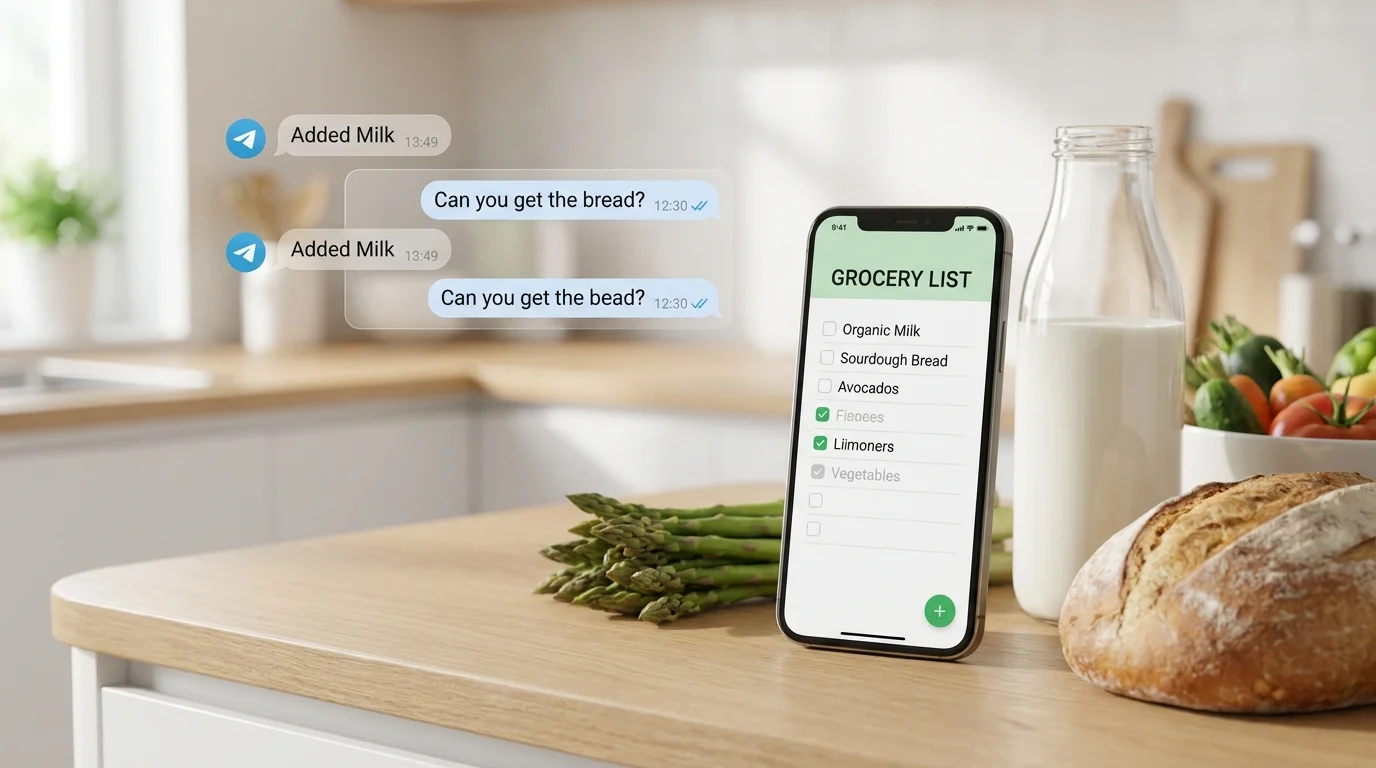
Google Keep is often recommended as a simple option for shopping: open a note, enable checkboxes, mark items as 'bought' — done. For many, this is indeed a working system, especially if one person manages the list or you share it occasionally.
But when shopping becomes a family task (multiple people, different stores, constant 'add more'), the requirements for the tool change. Below is an honest breakdown: what Google Keep shopping list does well, where it falls short specifically in a family scenario, and what to replace Google Keep with if you want less chaos.
Strengths of Google Keep for Shopping
It's important to start with the main point: Google Keep is an excellent free tool. It's fast, intuitive, and in many cases covers the basic need of 'write it down so you don't forget.'
Here's what people appreciate about it when it comes to Google Keep shopping:
- Free and accessible almost everywhere. The app is available on Android and iOS, as well as a web version. You can open the list from your phone in the store or from your computer at home.
- Checkboxes for shopping lists. One click — and the note turns into a task list. In the store, it's convenient to check off items as you buy them.
- Simple sharing. You can share a note with others via email. This is the basic 'Google shared shopping list' that couples and families often use.
- Voice input. Through Google Assistant, you can easily dictate items on the go: when your hands are full or you're in the car. For everyday scenarios, this really saves time.
- Speed and minimalism. Keep isn't overloaded with features. For short lists, this is a plus: fewer settings — faster results.
If you manage one list per week and rarely share it with anyone, Keep might be the ideal option.
Where Google Keep Starts to Fall Short for Family Shopping
Family shopping isn't just a 'list.' It's a process: someone adds, someone buys, someone clarifies, and then you want to know what you bought last time. And here is where Keep's limitations appear.
1) Sharing Requires a Google Account for Everyone
To collaboratively edit the list, each participant needs a Google account and access via email. In a family, this isn't always convenient: someone has a work email, someone doesn't have an account, someone doesn't want to tie shopping to Google.
As a result, the 'Google shared shopping list' turns into setting up permissions and explaining 'accept the invitation,' instead of just opening the list and getting things done.
2) No Categories by Store Department
Keep stores items well but doesn't help you navigate the store quickly. Usually, you want to group purchases by department: vegetables, dairy, meat, household chemicals.
In Keep, you have to do this manually (emojis, headings, spaces), and the structure quickly falls apart. For family lists where different people add items, the order breaks down especially often.
3) No Convenient 'Bought' Notifications for Other Participants
When shopping is split between two people, synchronization is crucial: one buys — the other should understand that the item can be skipped. In Keep, updates do sync, of course, but there's no clear 'notify that it's bought' scenario.
This leads to duplicates: one person already grabbed milk, the other didn't notice and grabs another. Especially if the connection is poor or the list isn't open constantly.
4) The List Gets Lost Among Other Notes
Google Keep is for notes about everything: ideas, links, Wi-Fi passwords, checklists, plans. At some point, the shopping list stops being the 'main screen' and starts getting lost in the feed.
Yes, you can pin the note, set a color, add a label. But that still doesn't turn Keep into a specialized shopping tool — it remains a universal notebook.
5) No Purchase History or Reuse
Family shopping often repeats: bread, eggs, coffee, pet food, detergent. In Keep, you can copy the note or rewrite it, but there's no proper history of 'what we bought and when.'
When you try to remember 'which cheese we bought last time' or 'when we bought filters,' Keep doesn't help — it's just text and checkboxes.
Checklist: Is Keep Right for Your Shopping?
To quickly figure out if this is your tool, check your scenario against the checklist. The more 'yes' answers in the right column, the more likely Keep will start to limit you.
| Question | Keep usually works | Keep may fall short |
|---|---|---|
| Is the list managed by one person? | Yes | No, 2+ participants |
| Does everyone have Google accounts and is sharing via email convenient? | Yes | No / inconvenient |
| Are simple checkboxes without store departments enough? | Yes | No, categories needed |
| Do you rarely shop in parallel in different places? | Yes | No, we often split shopping |
| Do you not need purchase history and item reuse? | Yes | No, we want to remember what we bought |
What to Replace Google Keep With When You Need a Family Shopping List
If you're looking for what to replace Google Keep with, it's important not to 'just get another note-taking app,' but to find a tool designed for collaborative shopping. This usually means several things: quick access for all participants, clear structure, synchronization, and a 'added — bought — everyone saw it' scenario.
What to look for when choosing a replacement:
- Shared access without extra accounts. The fewer barriers for family members, the more stable the habit of using one list.
- Categories or grouping by department. This saves time in the store and reduces the chance of forgetting something important.
- Real-time synchronization. Ideally, changes should be visible immediately when the other person is standing at the shelf.
- Notifications or a clear 'bought' status. Not necessarily push notifications, but at least a clear signal for all participants.
- History and repeat purchases. The ability to quickly restore a typical weekly list or repeat a previous shopping trip.
Keep remains an excellent 'everyday' option for notes and simple lists. But for families, solutions where shopping isn't just a note among others but a separate, clear process often win.
How to Migrate Lists from Google Keep Without Pain
Moving usually scares people: it seems like you'll have to rewrite everything. In practice, you can migrate only what you really need and do it in 10–15 minutes.
Step 1: Identify 'Core' Recurring Items
Open your current Google Keep shopping list and write down 20–40 items that repeat almost every week. This will be the 'skeleton' of your family list.
Step 2: Divide by Store Department
Even simple grouping reduces friction. For example: 'Vegetables and Fruits,' 'Dairy,' 'Meat/Fish,' 'Groceries,' 'Household.'
If the new solution supports categories, organize them right away. If not, at least keep order in blocks.
Step 3: Agree on Adding Rules
A family list breaks not because of the app but because of different styles. Simple rules help: add specifically ('milk 2.5% 2 pcs.'), write the brand only if important, don't delete purchased items immediately if the other person is still in the store.
Step 4: Keep Keep as an Archive for a While
You don't have to 'cut off' the habit. Leave the old note in Keep for a couple of weeks as a backup, and use the new list as the main one. Usually, after 7–10 days, it becomes clear which is more convenient.
Conclusion
Google Keep is a strong free tool, and for many scenarios, Google Keep shopping fully covers the task: fast, simple, with checkboxes, voice input, and the ability to share.
But when shopping becomes a family process, Keep starts to limit you: access via Google accounts, lack of categories by department, weak 'family' synchronization of the 'bought' status, the list getting lost among notes, and no history.
If you need a more 'shopping-focused' format, you can try Pickt — a free mini-app in Telegram for collaborative shopping lists with real-time synchronization: t.me/PicktBot/app. It's an option when you want the list to be where the family already communicates, without extra logins and switching.